How to Add Music to a Slideshow (Free, Browser-Based)
Adding music to a slideshow used to be a complicated affair, often requiring expensive software and a steep learning curve. But in today's digital age, creating a powerful, emotive slideshow synced with the perfect soundtrack has never been easier or more accessible. If you've ever wondered <mark>how to add music to a slideshow (free, browser-based)</mark>, you're in the right place. We'll walk you through the entire process, from choosing the right audio to mastering advanced techniques like ducking and looping, all without spending a dime or downloading a single application. Imagine transforming a collection of cherished photographs into a dynamic visual story, enhanced by a carefully selected melody that elevates every frame. Whether you're commemorating a special event, creating a heartfelt tribute, or simply sharing memories with friends and family, the right music can make all the difference, turning a simple slideshow into a truly cinematic experience. Get ready to discover how effortlessly you can bring your slideshows to life, directly from your web browser.
- →Choose the right music for your slideshow, considering mood, tempo, and licensing.
- →Use a free, browser-based tool to easily upload photos and music.
- →Master techniques like ducking (lowering music for voiceovers) and looping for seamless audio.
- →Export your slideshow in high quality for sharing across platforms.
1. Why Music is the Secret Ingredient for a Memorable Slideshow
Think about your favorite movie scene. Chances are, the emotional impact is heavily influenced by the score. Music in a slideshow works similarly, creating an atmosphere, evoking feelings, and guiding your audience through the narrative. Without it, even the most beautiful photos can feel flat or disconnected. With the right soundtrack, however, a series of still images can tell a compelling story, stirring memories and forging deeper connections.
Music amplifies the feelings associated with your photos, whether joy, nostalgia, or solemn reflection.
Tempo dictates the rhythm of your slideshow, creating a natural flow between slides and transitions.
A well-chosen song can underscore the story being told, adding an extra layer of meaning.
Adding music elevates your slideshow from a simple photo display to a polished, professional presentation.
From a lively birthday celebration featuring Pharrell Williams' 'Happy' to a poignant memorial tribute set to Eric Clapton's 'Tears in Heaven,' the music you choose is paramount. It's not just background noise; it's an active participant in your storytelling, dictating the mood for every second of your presentation.

2. Choosing the Perfect Soundtrack: More Than Just a Song
Selecting music for your slideshow goes beyond picking a track you like. It requires careful consideration of several factors to ensure the audio complements your visuals perfectly. The goal is synergy, where music and images work together to create a cohesive and impactful experience.
- **Match the Mood:** Is your slideshow joyful, reflective, energetic, or romantic? The music's mood should align perfectly with the overall theme of your photos. A fast-paced pop song might not fit a solemn memorial, just as a slow, classical piece might feel out of place for a child's birthday.
- **Consider the Tempo:** The speed of the music (BPM - beats per minute) should ideally match the pacing of your photo transitions. For a dynamic slideshow with quick cuts, an uptempo song works best. For a more contemplative presentation, a slower tempo allows viewers to absorb each image.
- **Avoid Distractions:** Choose instrumental tracks or songs with minimal, unobtrusive lyrics if you want the focus to remain primarily on your photos. If lyrics are central to your message, ensure they enhance, rather than overshadow, the visuals.
- **Check Copyright & Licensing:** This is crucial, especially if you plan to share your slideshow publicly. Many popular songs are protected by copyright. For personal use among friends and family, it's generally less of an issue, but for public sharing (e.g., on YouTube), consider royalty-free music or tracks from creative commons libraries. Websites like Bensound.com or Pixabay Music offer excellent free options.
If you plan to use your slideshow for professional purposes or share it broadly online, always prioritize royalty-free music. It saves you potential legal headaches and ensures your content remains monetizable and accessible.
3. Step-by-Step: Adding Music with a Free, Browser-Based Tool
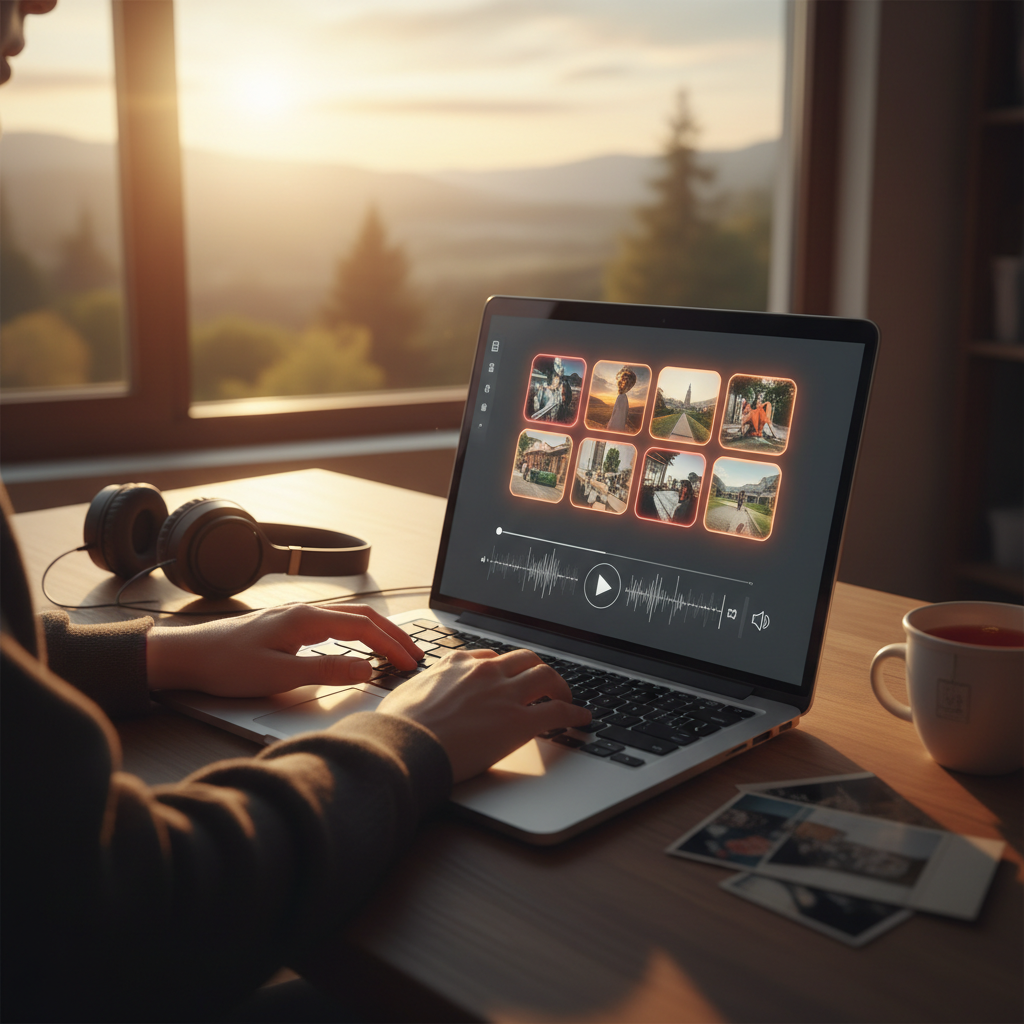
Gone are the days of needing expensive software like Adobe Premiere Pro or Final Cut Pro. Modern browser-based slideshow makers offer powerful features without the hefty price tag or steep learning curve. Here's a general workflow using a typical free online tool (like cinematicslideshowstudio.com, for example):
- **Upload Your Photos:** Start by uploading all the images you want to include in your slideshow. Most tools support drag-and-drop functionality, making this a breeze.
- **Arrange and Edit:** Order your photos, add captions, and make any necessary edits like cropping or basic color correction. Define slide durations; for a typical 5-minute slideshow with music, you might aim for 4-7 seconds per photo.
- **Upload Your Music:** Look for an 'Add Music' or 'Upload Audio' button. This is where you'll bring in your chosen MP3 or WAV file. Ensure the file size is reasonable; many free tools have limits. Some also offer a library of pre-licensed music.
- **Sync and Preview:** The tool will often display your audio track as a waveform. You can then adjust the start and end points of the music to match your slideshow's duration. Always preview your creation multiple times to ensure the music and visuals are perfectly synchronized.
- **Adjust Volume & Export:** Set the overall volume of your music. Once satisfied, hit the 'Export' or 'Download' button. You'll typically get options for different video resolutions (e.g., 720p, 1080p). Choose the highest quality available for the best viewing experience.
The beauty of these platforms is their intuitive design. Within minutes, you can have a professional-looking slideshow with a complete soundtrack, ready to share with the world.
4. Advanced Audio Techniques: Ducking and Looping
To truly elevate your slideshow, consider incorporating advanced audio techniques like 'ducking' and 'looping.' These aren't just for professional video editors; many free online tools now offer these functionalities to give your creation a polished, dynamic feel.
| Technique | What It Is | Why It Matters |
|---|---|---|
| Ducking (Audio Fading) | Automatically or manually lowering the volume of background music when a voiceover or key soundbite occurs. | Ensures voiceovers are clear and discernible, preventing music from competing with important spoken elements. Creates a more professional listening experience. |
| Looping (Seamless Repetition) | Repeating a music track from its beginning once its end is reached, often with a subtle fade-out/fade-in to maintain continuity. | Perfect for slideshows longer than a single song, ensuring continuous background music without abrupt silences. Creates a consistent auditory backdrop. |
For ducking, look for options like 'Fade Music for Voiceover' or a slider to adjust background music volume when another audio track is present. For looping, simply select the 'Loop audio' checkbox, and the tool will handle the seamless repetition for you. These features, once exclusive to high-end software, are now readily available in browser-based solutions, allowing anyone to produce a sophisticated, media-rich presentation.
Get the weekly digest
No spam. Unsubscribe anytime.
5. Troubleshooting Common Audio Issues
Even with the best tools, you might encounter a few hiccups when adding music to your slideshow. Don't worry, most issues have simple solutions:
- **Music Too Loud/Soft:** Check the volume slider within your slideshow maker. Most tools allow independent volume control for music and any other audio tracks.
- **Audio Out of Sync:** This often happens if you've added or removed photos after placing the music. Re-sync by trimming the music, adjusting photo durations, or re-uploading the audio file.
- **Choppy Playback:** This can be due to a slow internet connection or a very large music file. Try compressing your audio file or ensuring a stable connection. Using the recommended file formats (MP3/WAV) also helps.
- **Music Cuts Off Abruptly:** This means your music track is shorter than your slideshow. Either trim your slideshow, add more photos to match the music, or enable the looping function if available. If your track is longer, simply trim the end of the music to match the slideshow's duration.
- **No Sound on Exported Slideshow:** Double-check your device's volume and the player you're using. Ensure you didn't accidentally mute the audio during the creation process or export settings. Sometimes, simply re-exporting the file resolves the issue.
If your photos and music repeatedly fall out of sync, try setting a slightly longer duration for each photo, then adjust the music to fit. This often provides more leeway for transitions and keeps everything aligned.
6. Sharing Your Musical Masterpiece
Once your slideshow is complete, music perfectly synced, and all edits polished, it's time to share your creation! Most free, browser-based tools offer direct sharing options or allow you to download the video file for manual upload.
- **Social Media:** Platforms like Facebook, Instagram, and YouTube are ideal for sharing. Remember to check their specific guidelines for music usage, especially if you used copyrighted tracks.
- **Email & Messaging Apps:** For more private sharing, you can send the downloaded video file via email or messaging apps like WhatsApp or Telegram. Keep file size in mind for quicker uploads and downloads.
- **Cloud Storage:** Upload to Google Drive, Dropbox, or iCloud to easily share a link with friends and family, providing a convenient way for them to view and download.
- **Embedded on a Website:** If you have a personal blog or website, you can often embed the video using HTML code provided by platforms like YouTube or Vimeo.
No matter how you choose to share, the impact of a well-crafted slideshow, especially one infused with the perfect soundtrack, is undeniable. It transforms simple photos into a rich, immersive experience that resonates with anyone who watches it.
Frequently asked questions
One short note. One great slideshow idea. Every week.
No spam. Unsubscribe anytime.
Comments (0)
Be the first to comment.
