What’s New in v1.7: Build a Complete Look Faster
Version 1.7 brings the creative decisions that shape a slideshow into one clearer journey. Start with the occasion and the feeling you want, preview a coordinated look before your own photos are added, refine the result with complete templates, and give a live presentation a designed opening screen. The result is a faster path from a blank project to a show that feels intentional from its first frame.
- →New Project setup now connects the event, style direction, and creator mode in one clear starting step.
- →Your Look previews a coordinated background, borders, movement, and effects without spending an AI credit.
- →The expanded template library applies complete visual recipes that remain fully editable.
- →Gentle Sway and Pop Cascade add two new ways to animate floating photo groups.
- →Show Menu creates a polished, optional opening screen for live presentations.
1. Begin with the story you want to tell
The refreshed New Project screen begins with four decisions that belong together: a title, an event type, a style direction, and a creator mode. Instead of asking you to assemble a visual identity one setting at a time, v1.7 lets the occasion and mood establish a useful starting point from the beginning.
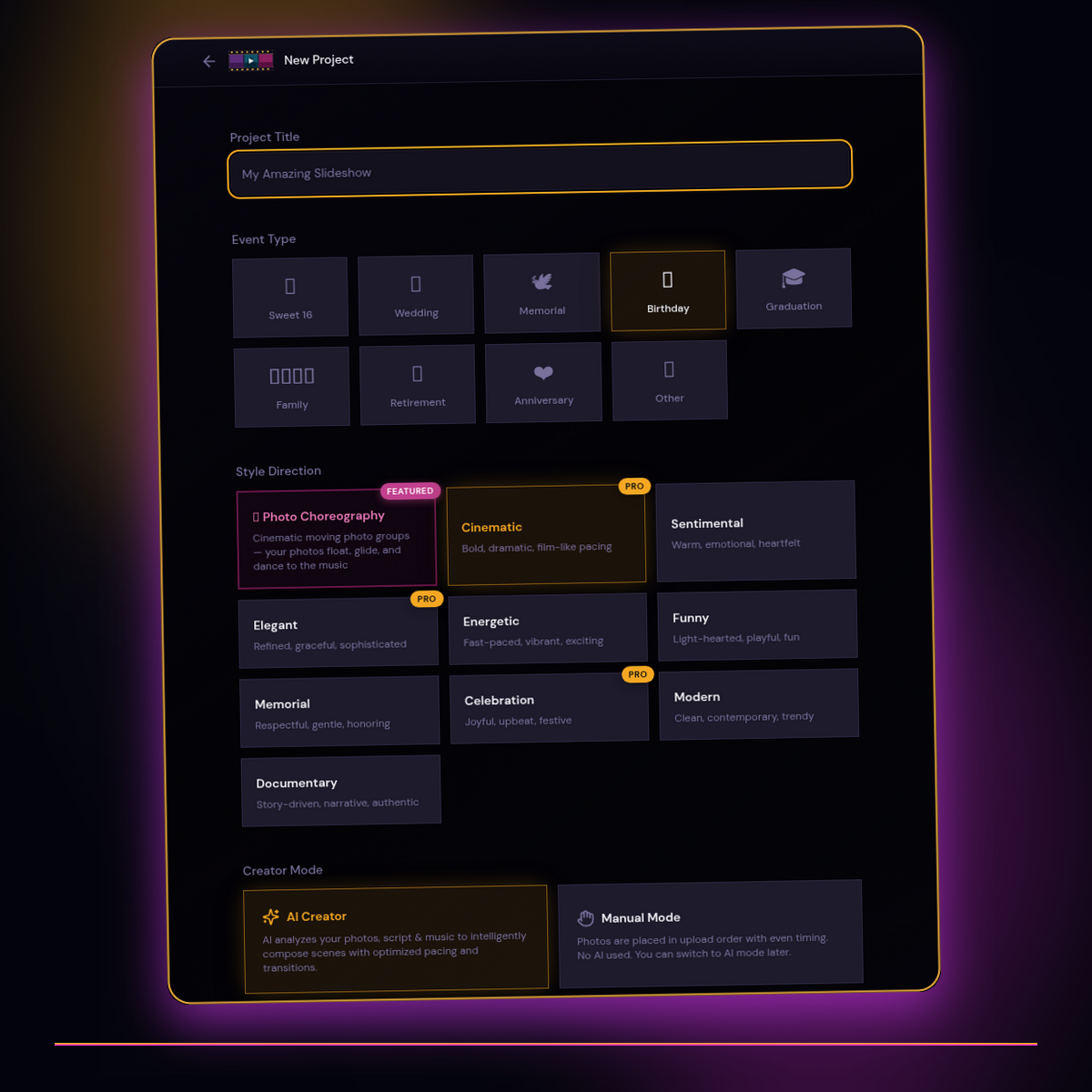
Event choices cover Sweet 16, weddings, memorials, birthdays, graduations, family stories, retirement, anniversaries, and more. Style directions range from Cinematic and Elegant to Sentimental, Energetic, Funny, Memorial, Celebration, Modern, and Documentary. Photo Choreography remains available when you want the signature floating-photo presentation to lead the design.
Choose AI Creator when you want the app to analyze your photos, script, and music and compose the scenes with optimized pacing and transitions. Choose Manual Mode when you want direct control from the start without AI analysis.
2. See a coordinated look before you continue
The backdrop step now does more than select what sits behind the photos. Pick a solid color, gradient, uploaded image, uploaded video, or a background from the library. If you would rather begin with a coordinated suggestion, Let AI pick assembles a complete direction and displays it in the widescreen Your Look preview.
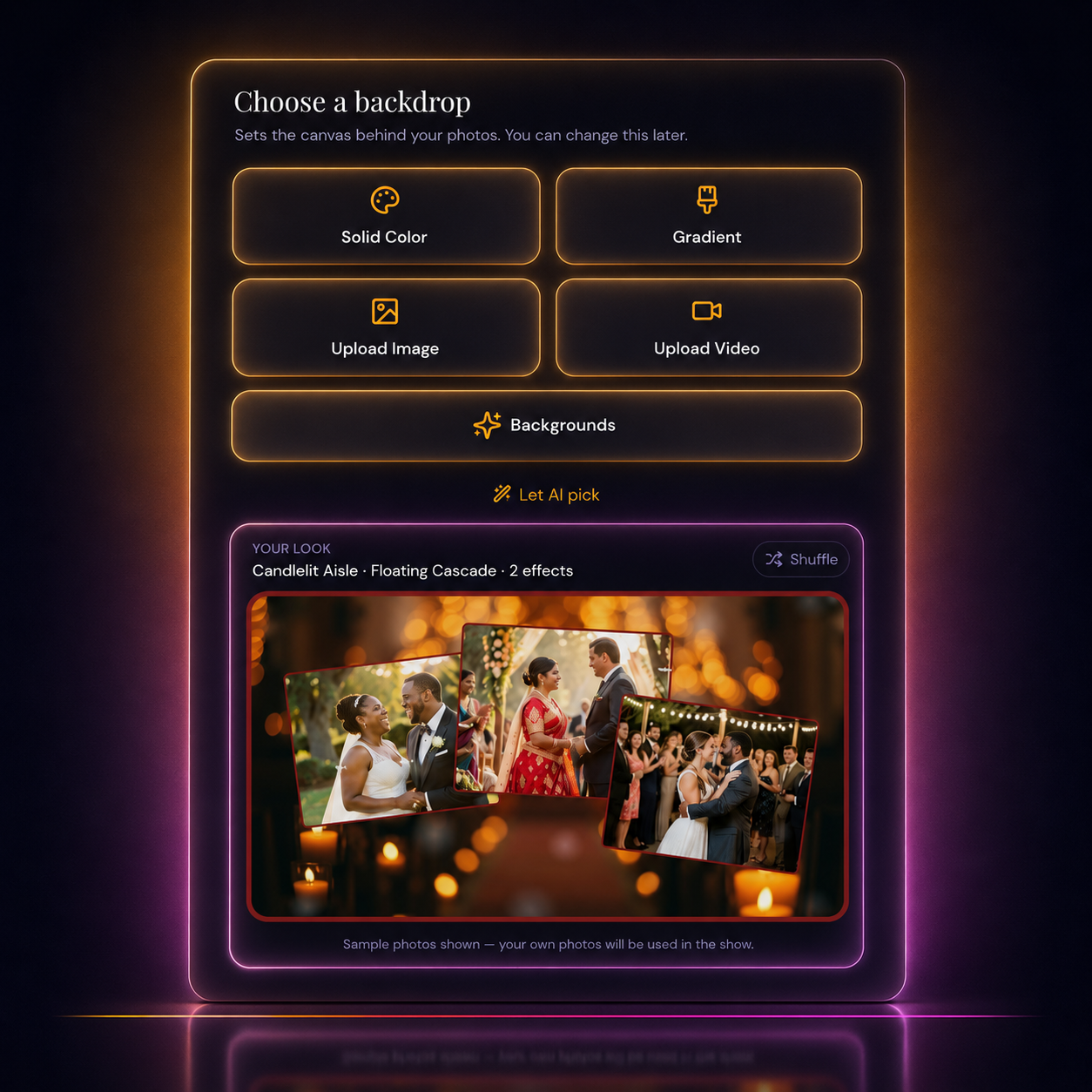
The preview uses three event-specific sample photos so you can judge the whole composition immediately. Those same sample photos stay in place when you select Shuffle, making it easier to compare one direction with the next. Your own photos replace the samples in the finished project.
Despite the name, this choice does not spend an AI credit or wait for a model response. A fast rules engine reads the selected background colors and coordinates the photo borders, show border, layout, movement, and effects. Free looks use clean solid-color borders. Pro accounts receive gradient border combinations with broad color variation, while motion and effects are still chosen for the mood rather than added simply because they are available.
3. Apply a complete template, then make it yours
Inside the Studio, the Templates library brings the same coordinated approach to an existing project. Each template is a complete visual recipe rather than a single background: backdrop, photo treatment, borders, movement, transitions, and supporting effects are designed to work together.
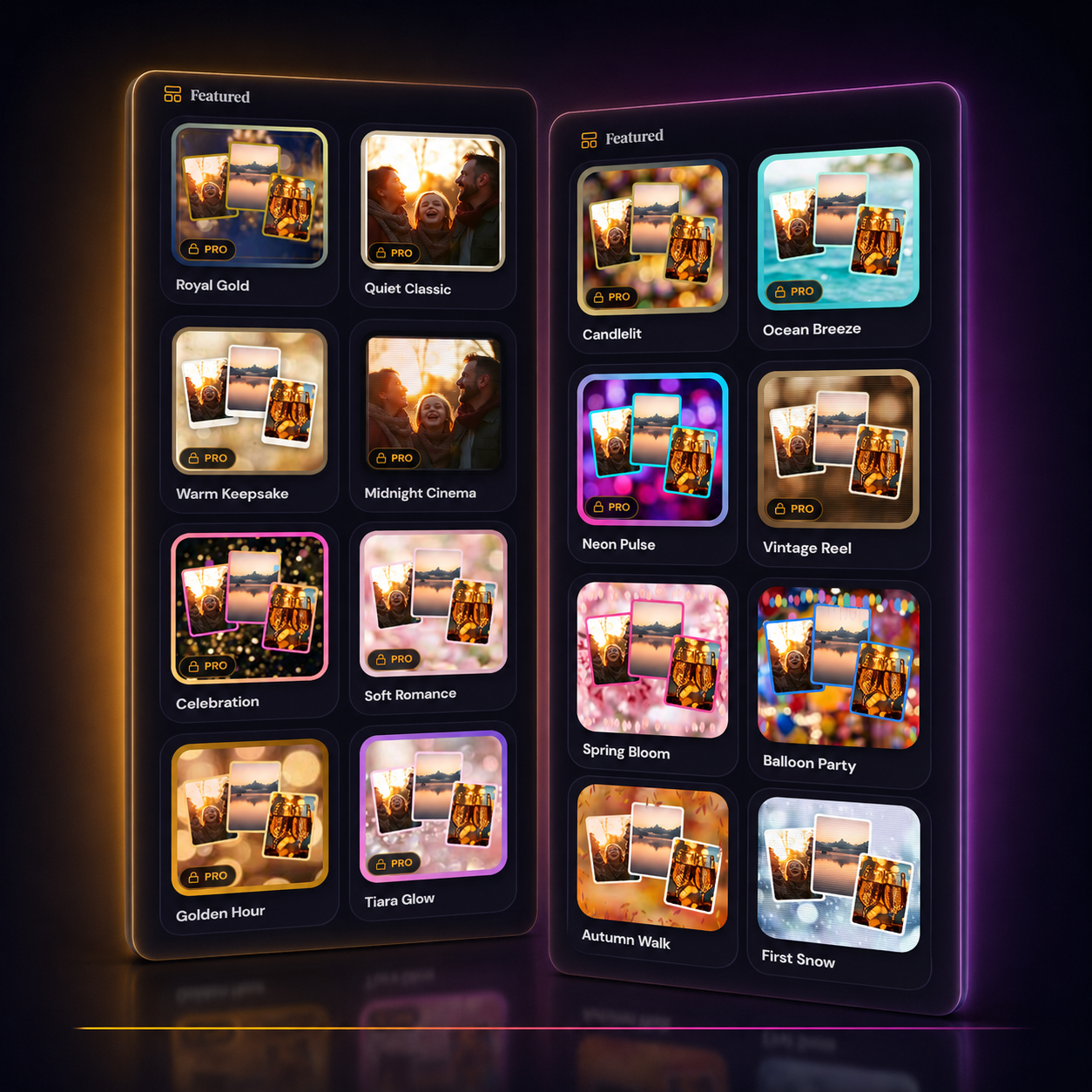
The expanded range makes it easier to move between restrained, nostalgic, celebratory, seasonal, and high-energy treatments without rebuilding every setting. Featured choices such as Royal Gold, Quiet Classic, Warm Keepsake, and Midnight Cinema sit alongside brighter directions such as Celebration, Neon Pulse, Spring Bloom, and Balloon Party. Pro labels remain visible on the looks that use premium styling.
After applying a template, the Studio controls remain available. You can refine the backdrop, borders, filters, motion, and effects while keeping the parts of the template that already fit your story.
Get the weekly digest
No spam. Unsubscribe anytime.
4. Bring more movement to photo groups
Version 1.7 also expands the movement vocabulary for floating photo groups. Gentle Sway adds slow drift and soft rotation for elegant, reflective, and sentimental projects. Pop Cascade introduces photos with staggered scale-in energy that suits birthdays, celebrations, and playful stories.
A calm drifting motion with subtle rotation for graceful storytelling.
A lively sequence of staggered photo arrivals for upbeat moments.
Photos continue to move as composed groups, preserving the visual relationship between each image.
The new choices add variety without changing how a project is structured. Applying a look or movement does not add scenes, remove media, or alter the number of assets in the project. It changes presentation—not the story you already assembled.
5. Welcome the audience with a Show Menu
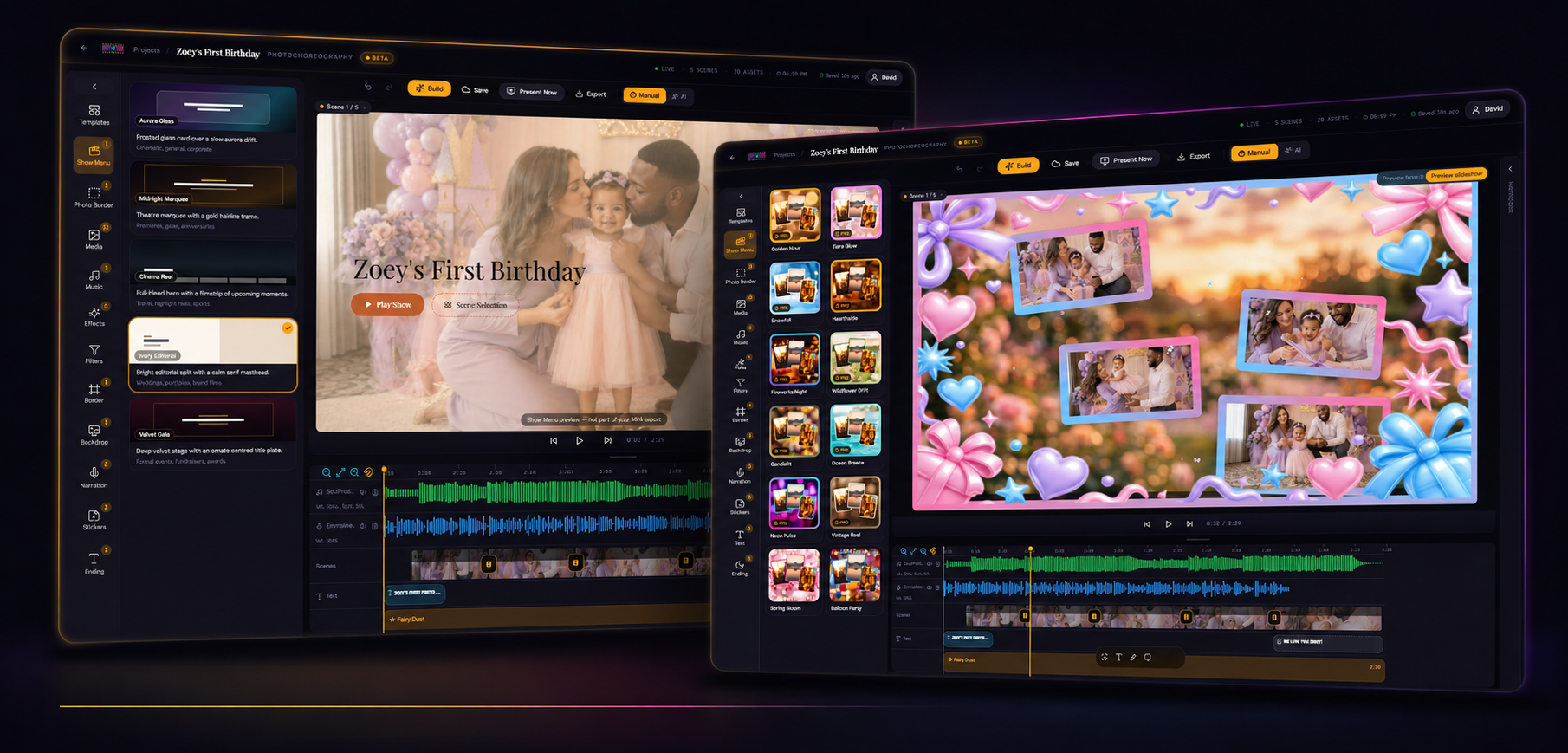
A live slideshow no longer has to begin on a paused first frame. Show Menu adds an optional designed opening screen before scene one, giving guests a polished place to arrive while the room settles. The project title, Play Show action, and Scene Selection are presented as part of the visual experience.
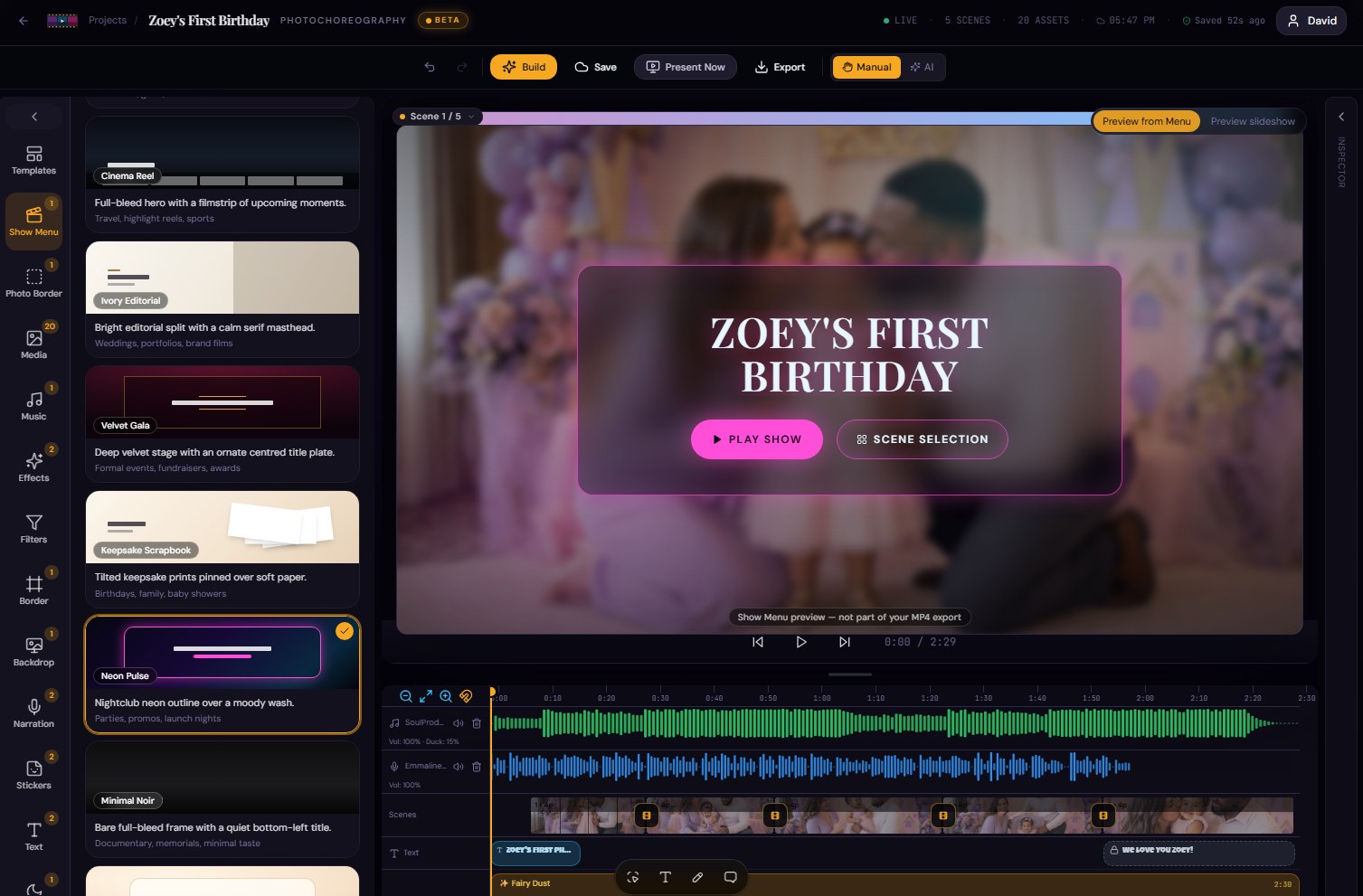
The Show Menu browser includes distinct treatments such as Cinema Reel, Ivory Editorial, Velvet Gala, Keepsake Scrapbook, Neon Pulse, and Minimal Noir. Each changes the framing and tone of the welcome screen while previewing against the project itself, so you can judge the choice in context before presenting.
"Version 1.7 connects the first creative choice to the final moment before playback: choose the story, preview the look, refine the design, and welcome the audience with confidence."
Frequently asked questions
One short note. One great slideshow idea. Every week.
No spam. Unsubscribe anytime.
Comments (0)
Be the first to comment.
